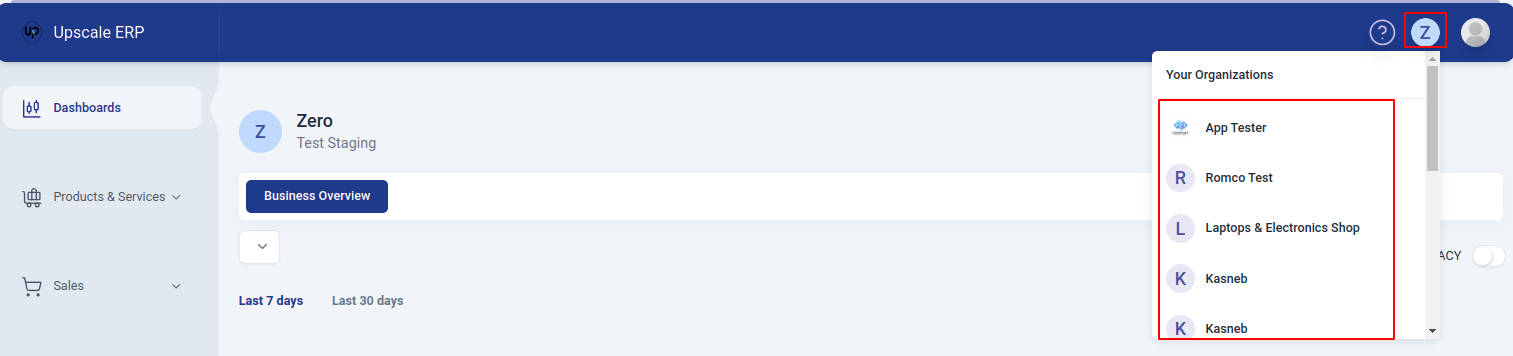
Manage Your Organizations
Note
Creating organizations, editing your company profile and logo, switching between organizations, and setting a default are now handled in Upscale Hub, which manages this for all your Upscale products in one place. See the Hub guide: Organizations. The steps below are kept for reference.
Adding your Organization
After signing in to your Upscale account, you can add your business by creating an organization.Here's how to do it:
- On the top-right of the page, click on the organizations button, then click on "Add Organization" button on the dropdown
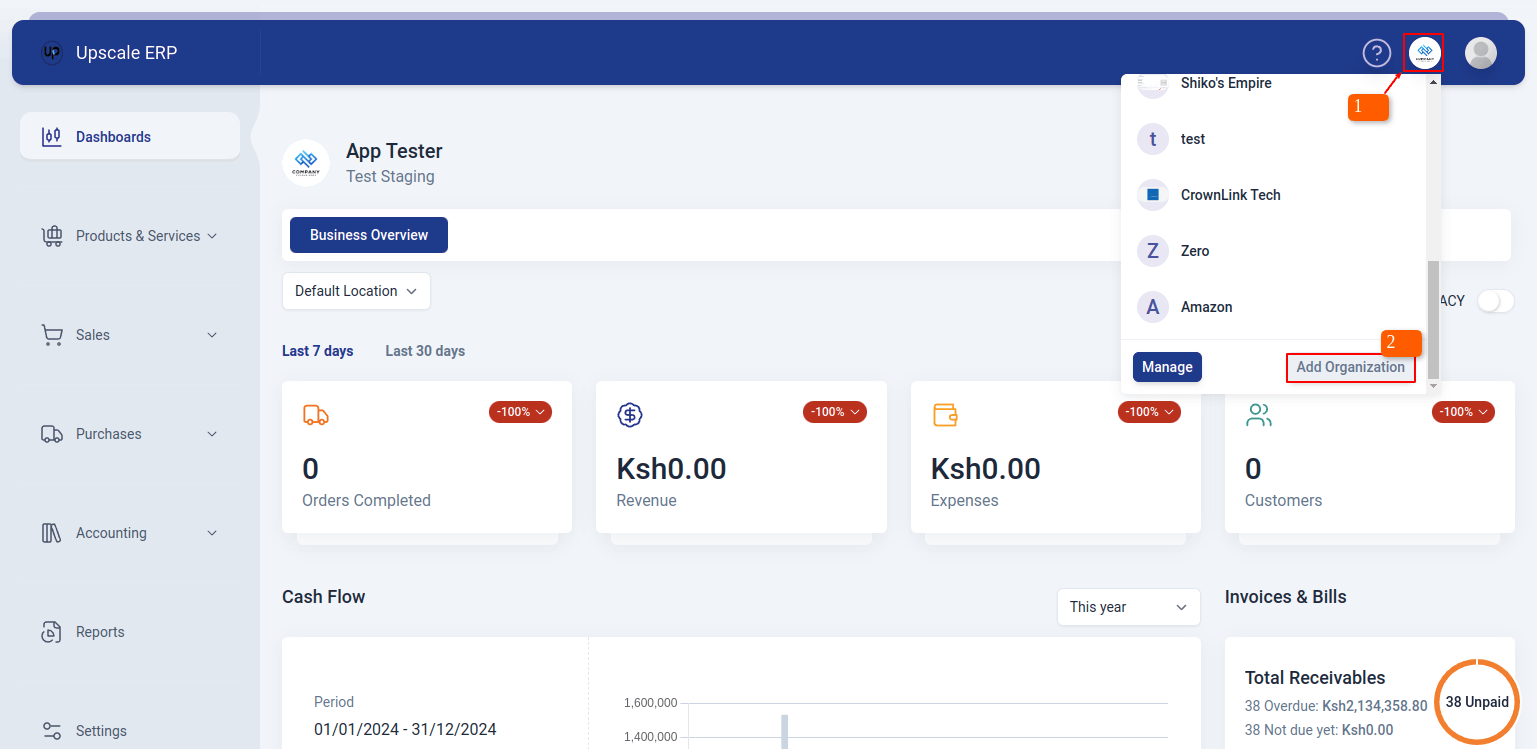
- Fill in all the details about your business on the 'new organization' page,like name, base currency, industry category,location,etc.
- Once you've completed filling in details on page one, click "Next" to proceed to page two, where you can input the taxes charged in your business, click submit when done.
- Once it has created successfully, you can go to inventory to add items,then start selling to customers/create transactions.
Adding Logo to your Organization
To add a logo to your organization,
- Go to the Settings module and under system settings,you will find 'Organization Profile' section.
- Click on 'Update Logo' button on the far right of the organization profile page.
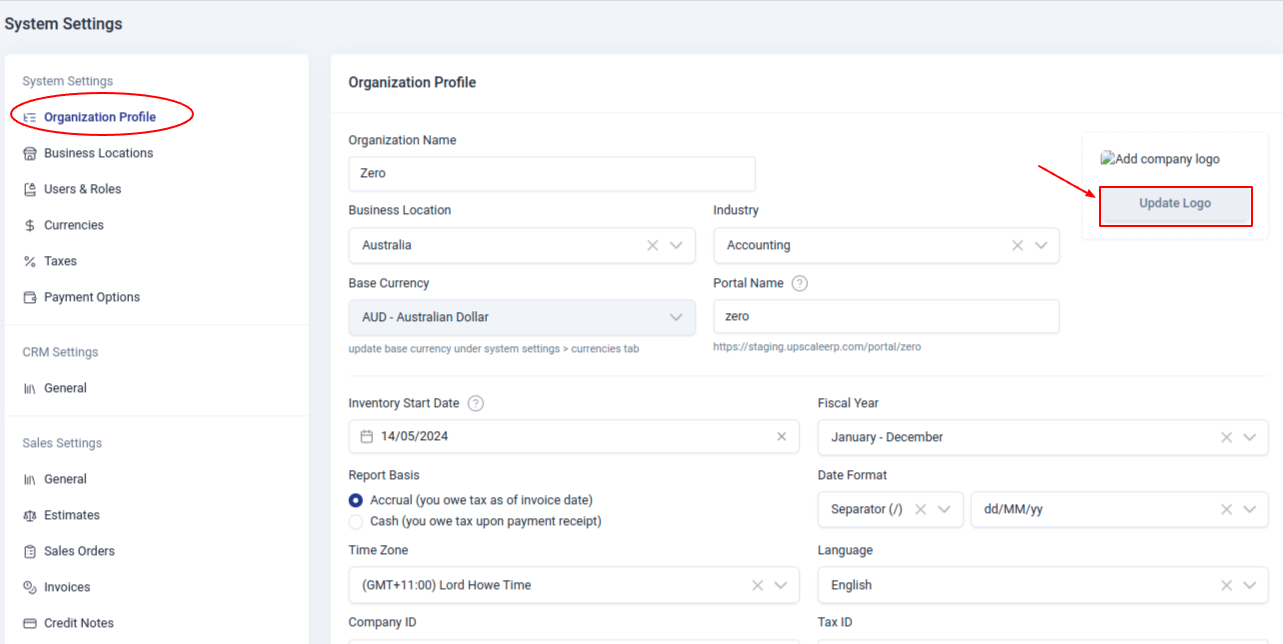
- You can choose to add your logo from the web address,files or camera.
- Click done to save.
Update Organization details
To change your organization details, simply:
- Go to the Settings module and under system settings,you will find 'Organization Profile' section.
- You can edit in/out the changes you want and when done,click on "Update Profile" button.
Switching between Organizations
If you have multiple organizations in Upscale ERP,you can switch between these organizations by:
- Clicking on the organizations button on the top-right of the page.
- A list of your organization will pop-up and you can select the organization you want to switch to.