
Inventory Settings
General
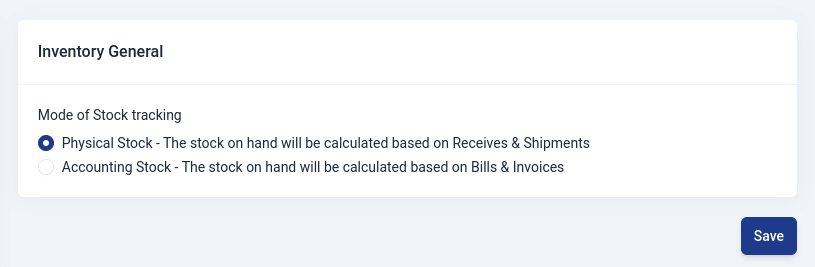
Here,you choose the mode of tracking inventory for your business.
- Physical Stock
The physical stock on hand is determined by keeping track of the items your business receives and the items it ships out.
- Account Stocking
This is a way of determining how much of a product a business has on hand, but it relies on information from bills and invoices.
Products and Services
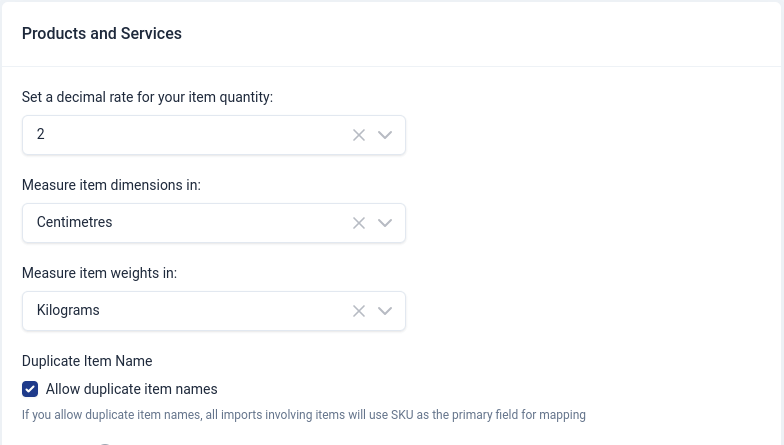
In the first section, you can choose the decimal rate for item quantity, measurement item dimensions, measurement item weights.
Duplicate Item Names
Here,you can choose this option to allow duplicate item names.
Price Lists
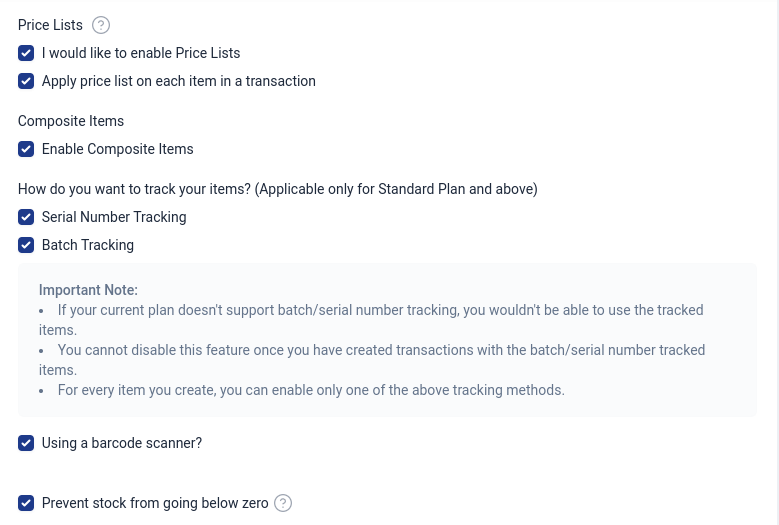
Here,you choose whether to enable Price Lists and if you want to apply a price list on each item in a transaction.
A price list with rounding based on decimal values typically involves specifying how the prices should be rounded to a certain number of decimal places. The number of decimal places to which a price is rounded can depend on various factors, such as industry standards, regulatory requirements, or simply the preference of the business.
Tracking Items
In Upscale ERP, inventory can be tracked by two methods through:
- Serial numbers
A serial number is unique and individualized combination of numbers, letters, or symbols assigned to a specific item, product, or component.
- Batches
Also known as batch tracking, is a method of monitoring and managing groups of items or products that were manufactured or processed together during a specific production run or time period.
Preventing stock from going below zero
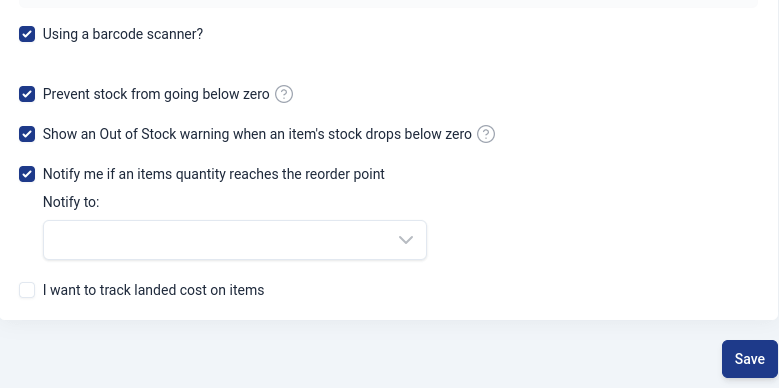
If you choose this option,you will not be able to perform any action that will result in your your stock going below zero.
Show an Out of Stock warning when an item's stock drops below zero
If you select this, a warning will show when a transaction results in the stock dropping below zero.
Notify if an items quantity reaches the reorder point
Here,you can choose whether to be notified with a custom message when your items quantity reaches a reorder point.
Tracking landed cost on items
This refers to keeping a record of the total cost incurred to acquire and bring a product to its final destination, including not just the initial purchase price but also additional costs associated with shipping, handling, customs, and other expenses related to getting the product into inventory.
Bins
Bins track where stock sits inside a location. Everything on this page is off until you switch bins on, and the page walks you through the switch itself: give each location a default bin, move your existing balances into it, then turn bins on. See Bins for the full guide.
Use bins
Turns the feature on for your organization. It can only be turned off again once no bin holds stock.
What to call them
Bins can be called Bin, Shelf, Rack, Zone or Position. The name you pick is used everywhere the feature appears, so pick the word your team already says.
When a bin must be chosen
- Require a bin when stock comes in covers bills, transfers in and positive adjustments.
- Require a bin when stock goes out covers invoices, packages, transfers out and write-offs.
- Let sales pick the bin to sell from adds a bin picker to invoices and packages. With it off, sales take stock from the location and your warehouse decides which shelf to pick from.
Per location
The three settings above are your default. The per-location table below them lets any location work differently: a warehouse can require a bin on everything while a till point does not.
Each location can also opt out of bins entirely. An opted-out location keeps working exactly as it does today, needs no default bin, and is left out of the checks. This is what lets you adopt bins in one warehouse without changing every shop on the same day.
Leave a setting on 'Inherit' and it follows your organization default, including if you change that default later.
Availability
Don't count stock in non-sellable bins as available keeps stock in bins like 'Needs repair' on your books and in your stock reports, but out of available stock. Leave this on unless you want that stock offered for sale.
Templates
Name a set of attributes and their options once, and every combination becomes a bin. 'RAM' with '8GB, 16GB' and 'Storage' with '256GB, 1TB SSD' produces four bins. You generate from a template on the Bins page, one location at a time.
Generating is additive: combinations that already exist are skipped, so re-running after adding an option only creates the new bins.
Check for orphans on a template lists the bins it no longer produces after you remove an option, offers to deactivate the empty ones, and names any that still hold stock so you can move that stock first.
On documents
Add the bin to the line description composes the bin into the saved line when you save the document, for example 'HP EliteBook 840 G8, 16GB / 1TB SSD'. Your own wording is kept underneath, so switching this off later restores the description exactly as you typed it.
To print the bin as a separate detail instead, use 'Show sublocation details' on the invoice, receipt, delivery note or packing slip under Settings, Documents, Invoices. Using both at once prints the bin twice.