
Customers
In Upscale ERP, you have the flexibility to manage your business relationships by adding customers to your organization.
When it comes to creating sales transactions such as invoices or sales orders, it's essential to include your customers in your records.
Creating a New Customer
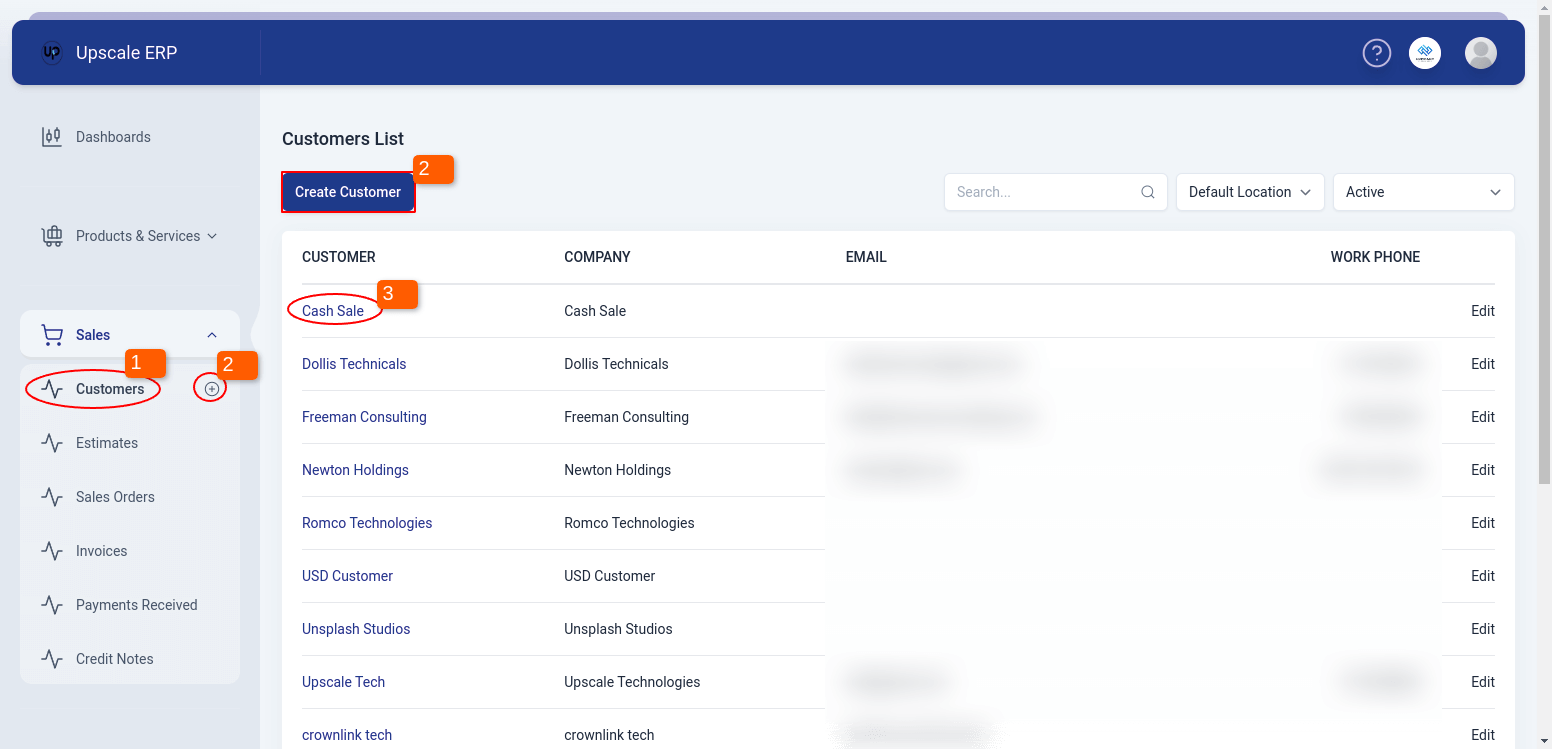
To create a customer, follow these steps:
- Navigate to the Customer module.
- Click on the Create Customer button on the list page. Alternatively, a shortcut that can be used is to click on the plus sign (+) next to Customer on the sidebar and it will take you to the create customer page.
Tip
- When you get to the Create screen, choose the customer type, whether an individual or a whole business, and fill in the general details like name, company name, email, display name and customer phone.
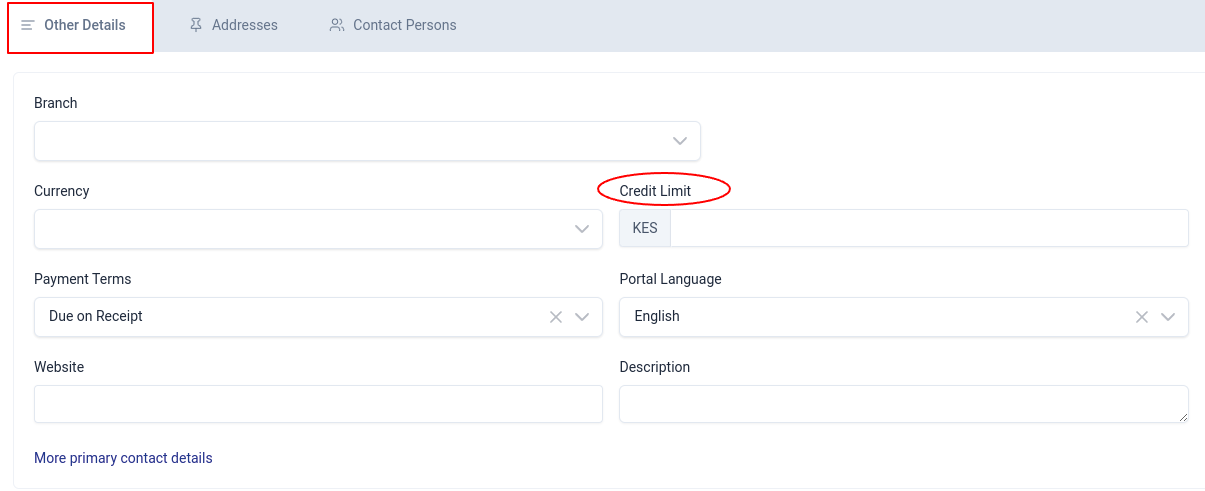
- In the Other Details section, choose the branch, currency the customer uses, enter the credit limit, payment terms, portal language etc.
Tip
- There is an option Addresses especially for international customers to input details like billing address, shipping address, country/region, etc.
- The option Contact Persons enables you to link several people or contacts to a single customer record. Businesses that deal with diverse individuals who serve different positions or have varied duties inside a client company may find this capability especially helpful.
- If there are more contact details to add, such as Facebook, Twitter, Skype ID or department, click on the More primary contact details found at the bottom.
- Once done filling in all this information, click on Save or Save & New to create another customer.
Tip
Setting Credit Limit for Customers
After enabling the customer credit limit, you need to assign a credit limit to each customer. This is handy when different people in your organization generate invoices for a customer without knowing if they can pay. To set limits:
Note: Leaving the credit limit field blank means that the customer has no credit limit.
- Navigate to Other Details in the Customers section and input the amount to be set as the credit limit.
- Click Save.
Customer View Page
To view a customer's details, click the customer display name on the list page which will lead to the overview page.
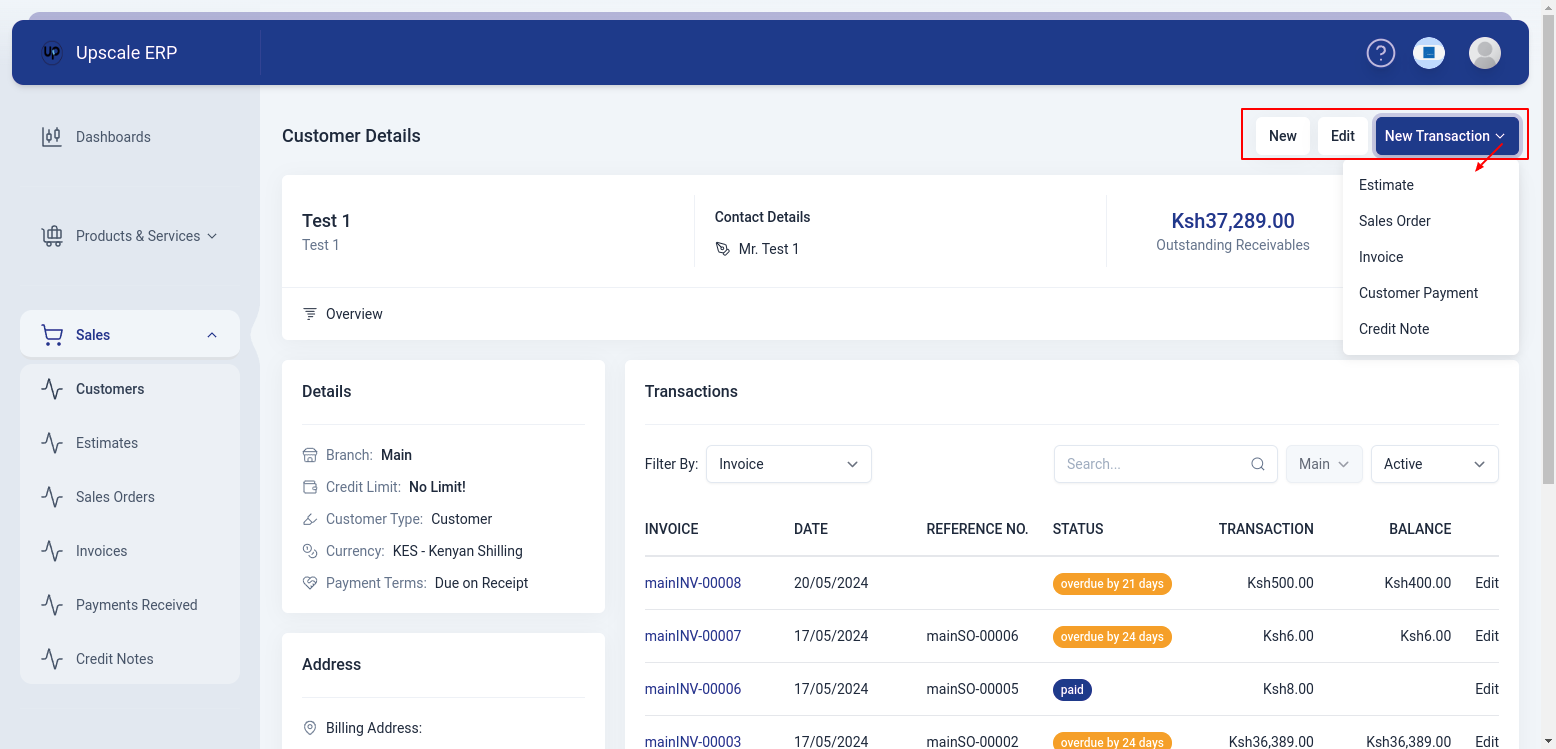
The customer view page has a number of sections, these include:
- Overview section
Here, we have details like customer, contact details, outstanding receivables and amount of unused credits.
- Outstanding Receivables
Outstanding receivables, or accounts receivable, are the money that a business is waiting to get paid by its customers for things they've already sold or services they've provided.
- Details section
Information such as credit limit, customer type, currency and payment terms are displayed here.
- Address
This section contains available addresses for the customer.
- Transactions
Provides a list of the customer's transaction history.
Customer View Page Features
- New: Used to create a new customer.
- Edit: Used to edit an already existing customer's details.
- New Transaction: Helps you quickly create a new document like an estimate, sales order, invoice, payment received, or credit note by filling in the customer's details automatically.
Deleting a Customer
To delete a customer, you have to delete all the transactions recorded under the customer, which can be viewed in the Transactions section on the customer view page.