
Inventory Reports
Go to the Reports module
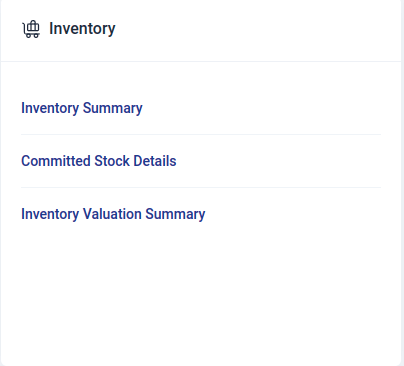
Generating Report
To generate a customized report in the inventory section:
- Select the report type to go to the report view page.
- Choose the branch for the report.
- Set the time period using the date picker and click Select.
- Click Run Report to generate it.
- Use the print feature to print the report.
The type of reports that can be generated in inventory include:
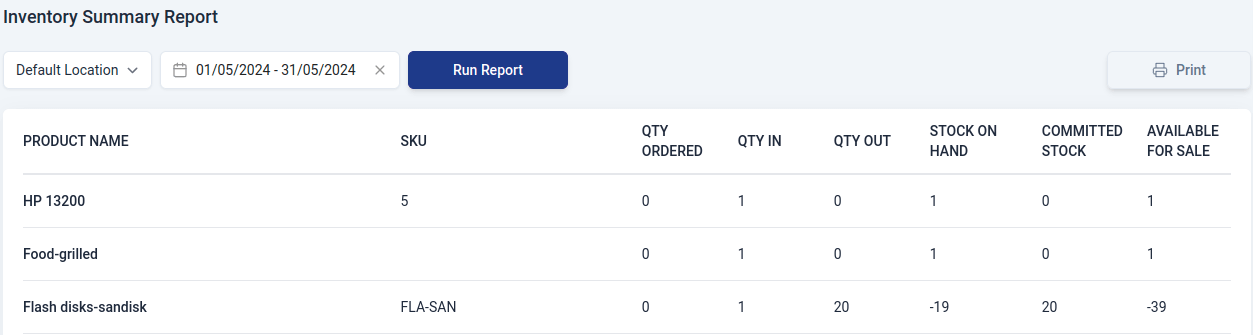
Inventory Summary Report
Where an item stood at the start of a period, what moved in and out, and where it ended. The row reads left to right as arithmetic: opening + in − out = closing.
Opening and closing are real balances taken from the stock ledger, not a sum of the period's movements, so an item that already held stock before the period starts from that figure, and one that sat still all month shows opening equal to closing.
The report includes:
- Product name
Name of the item.
- SKU
Stock keeping unit of the item.
- Opening stock
What the item held at this location when the period began.
- Qty in
Everything that came in during the period: purchases, returns from customers, transfers in and positive adjustments.
- Qty out
Everything that left during the period: sales, returns to suppliers, transfers out and negative adjustments.
- Closing stock
What the item holds at the end of the period. This is opening plus in, less out.
- Committed stock
Quantity you have promised to customers through sales orders. This is the position right now, not a figure for the period.
- Available for sale
Closing stock less committed stock: what you can still sell.
- Qty ordered
Quantity on open purchase orders, on its way in. Also a current position rather than a period figure.
Committed Stock Details Report
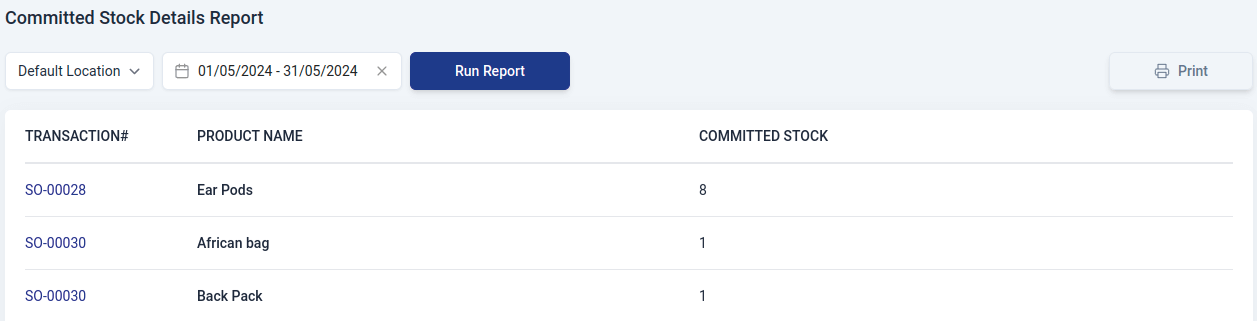
A report that gives comprehensive details about the stock that has been committed for a number of uses, including completing sales orders and satisfying particular client requests. This report contains:
- Transaction#
Document number.
- Product Name
Name of the item.
- Committed Stock
Quantity of items you've promised to sell to your customers through sales orders in Upscale ERP.
Inventory Valuation Summary Report
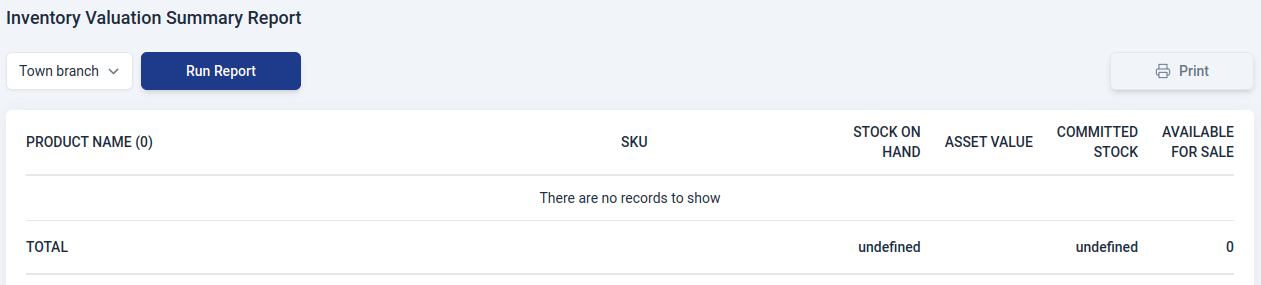
This report provides a concise summary of the total value of all items in your organization's stock.It contains:
- Product Name
Name of the item.
- SKU
Stock keeping unit of the item.
- Stock on hand
Number of stock items available for sale.
- Asset value
The total worth of the stock for a specific item in your company.
- Committed stock
Quantity of items you've promised to sell to your customers through sales orders in Upscale ERP.
- Available for sale
Overall quantity of a product that is currently ready and available for purchase by your customers.
Stock by Bin Report
If you use bins, this report lists every bin at a location with the items in it and how much of each.
It is a snapshot of right now rather than a period, so it has no date range. Two totals sit above the table and are usually the reason you opened it:
- In bins that cannot be sold
How much stock sits in bins like 'Needs repair'. It is on your books, and it is left out of available stock.
- Not in any bin yet
How much of this location's stock has not been put away into a bin. Stock lands in a location's default bin automatically, so a number here usually means a location was set up before bins were switched on.
Each row shows the bin, the item and its SKU, whether stock there can be sold, and the physical and accounting quantities.